ViewerGuide5 min read
How to Embed a 3D Model on Any Website (No Coding Required)
Add an interactive 3D product viewer to your website, Shopify store, or landing page in under 5 minutes, no developer needed.
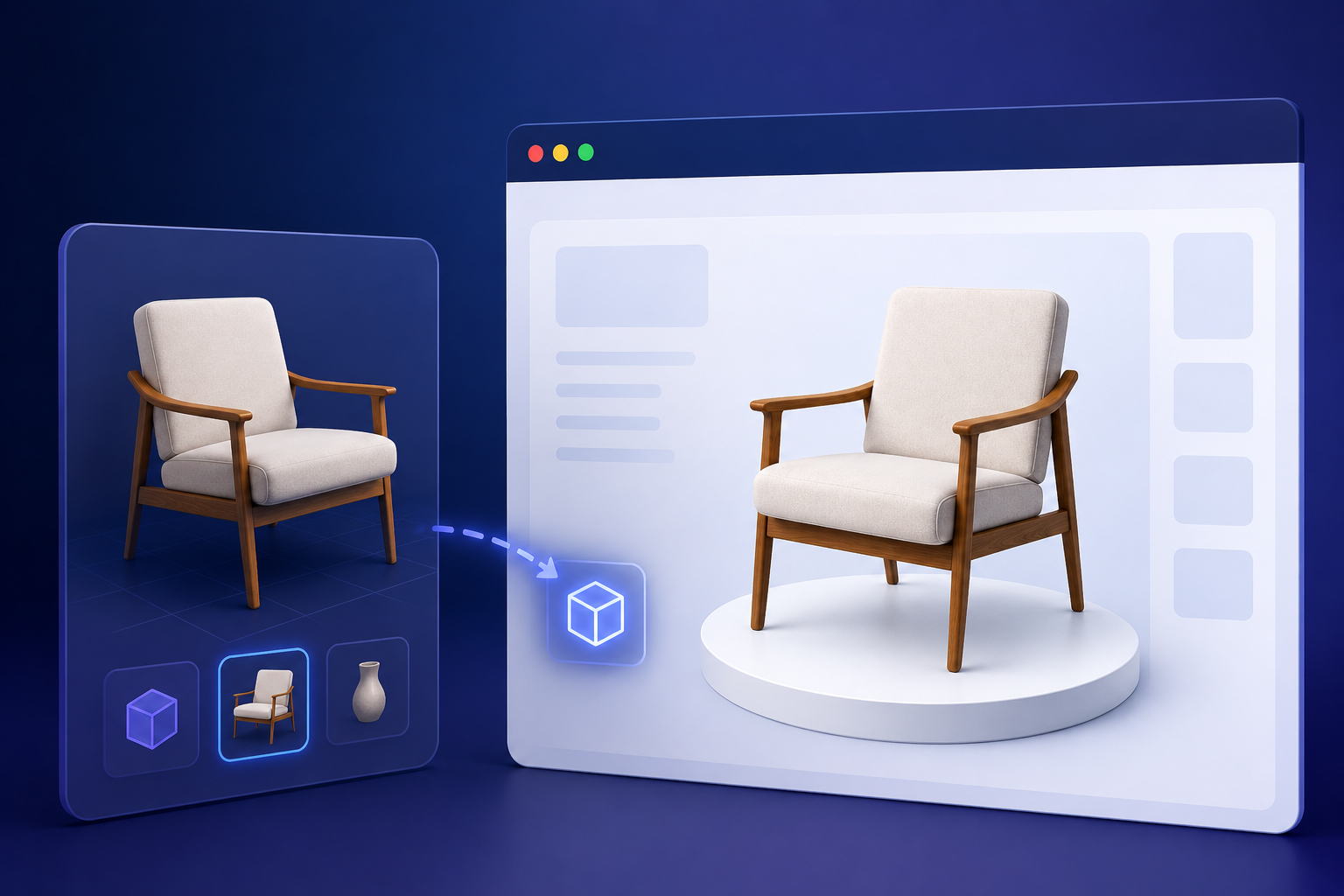
Embedding a 3D model on a website used to require a developer, a WebGL library, and at least a weekend of work. Today it takes about 5 minutes. Here's exactly how to do it with Luxa.
What you'll need
- A 3D model in GLB format (exported from Blender, Sketchfab, or your 3D tool of choice)
- A free Luxa account
- Access to your website's HTML or CMS
Step 1: Upload your GLB to Luxa
Log in to your Luxa dashboard and click "New Viewer". Drag your .glb file onto the upload area. Luxa will process it and open the 3D editor automatically. From here you can adjust lighting, materials, and camera position before publishing.
Step 2: Publish and copy the embed code
Click the Share button in the top bar. You'll see two options: a direct link (for sharing on social or email) and an iframe snippet for embedding. Copy the iframe code, it looks something like this:
<iframe src="https://luxa3d.com/viewer/your-model-id" width="100%" height="500" frameborder="0" allow="xr-spatial-tracking" allowfullscreen></iframe>Step 3: Paste it into your website
Paste the iframe wherever you want the viewer to appear. It works in any HTML page, Shopify product description (via the "HTML" mode in the editor), Webflow, Wix, WordPress, Notion, and virtually any platform that accepts HTML embeds.
iframe vs direct link: which should you use?
Use the iframe when you want the viewer embedded directly inside a page. Customers interact with it without navigating away. Use the direct link for emails, social media posts, or QR codes that open a fullscreen viewer. For e-commerce product pages, the iframe is almost always the right choice.
Does it work on mobile and AR?
Yes. Every Luxa viewer is fully responsive and works on iOS and Android without any app install. On supported devices, a "View in AR" button appears automatically. Customers can place your product in their room using their phone camera, no extra configuration needed.
Your products in 3D and AR.
For a whole catalogue we model it and publish it for you. To try it alone, the free plan includes AR.
More from the blog